The Clipboard as a Short-Lived Bridge Between Apps
Clipboard plain text keeps a copied passage useful across apps without dragging in unwanted fonts, colours or layout that complicate a draft.
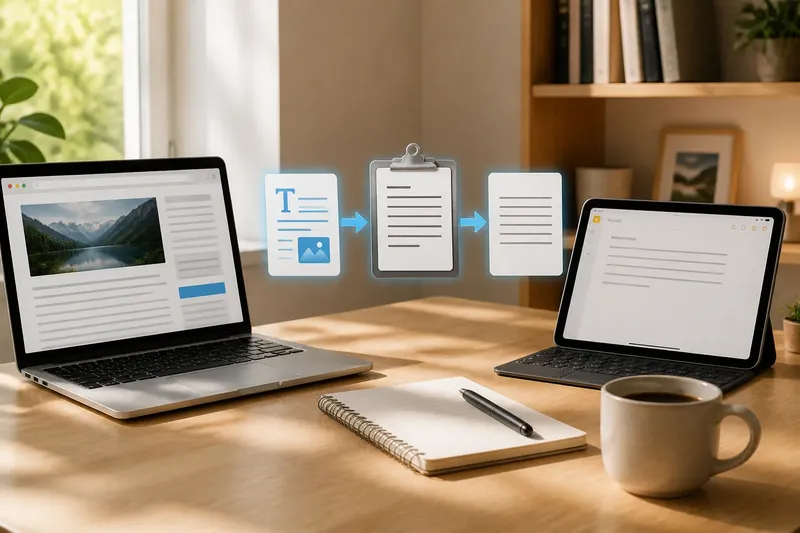
You copy a paragraph from a web page, switch to a draft, and watch its typeface and spacing arrive with it. The clipboard plain text option can make that small hand-off cleaner, preserving the words while leaving the source’s styling behind.
The clipboard is a temporary bridge: one app puts a selected item there, and another app receives it when you paste. Knowing what kind of content crosses that bridge helps you decide when to paste normally, when to use plain text, and when to stop and check the result.
What does the clipboard hold when I copy something?
It holds a copy of the selected content in a form the operating system and other apps can offer to the next destination. That may include text, formatting, links, images or other data, depending on what you selected and how the source app supports copying.
Copying usually leaves the original in place; cutting is different, because it removes the selection from its source when the app completes the action. The clipboard is not a folder you can browse like Documents. Its contents may be replaced by the next copy, and some devices or software also offer clipboard history or syncing as separate features.
For a short passage, the useful question is not just “Did the words copy?” but “What else came with them?” A styled web heading, a hyperlink, or an image may be welcome in a note and distracting in a clean draft.
Why does pasted text look different from the draft?
Many apps copy rich text, which can carry details such as font, bolding, colour, links and paragraph spacing. A destination app may preserve those details, adapt them to its own style, or interpret them differently. The result can be a sudden change in type size, an unexpected gap, or a link where you wanted plain words.
Plain-text pasting strips most presentation details and inserts the text itself. Depending on the apps involved, it may also remove links or other useful structure. It is therefore a choice about what to keep, not a universal improvement: a quotation for a plain draft may need only its wording, while a formatted table or carefully linked reference may need the richer version.
When should I use a plain-text intermediary?
Use one when text from a source carries formatting you do not want in the destination. A plain-text editor acts as a neutral stopping point: paste the copied passage there, check that the wording is intact, then copy it again and paste it into the draft. The intermediary gives you a chance to notice stray line breaks or text that did not transfer as expected.
Say you are drafting a note in Apple Notes and copy two sentences from a heavily styled web page. If the pasted text changes the note’s appearance, you could move it through TextEdit set to plain text, inspect the sentences, and then place them in the note. The expected observable result is a passage that follows the note’s existing text style, with the source’s decorative formatting left behind.
For a quick transfer, use the destination app’s paste-without-formatting command if it offers one. On many Mac apps, that command is under Edit; Windows apps often provide a plain-text paste option, though its label and shortcut vary. Check the app’s menus or help rather than assuming one shortcut works everywhere.
Which paste option fits the material I copied?
Match the paste method to what the destination needs. A short decision check can keep the hand-off simple:
- Plain wording for a draft: paste without formatting, then scan for missing words and awkward line breaks.
- A link that readers must follow: keep the hyperlink, or paste normally and check that its destination is still attached.
- A quotation with emphasis that matters: preserve formatting where appropriate, then make its appearance consistent with the surrounding text.
- A table or list: paste normally first if its structure matters, then inspect columns, bullets and spacing in the destination.
- Text that looks wrong after pasting: undo once, try the other paste mode, and compare before continuing.
These choices are not tied to one app pair. A browser, email client and word processor may each handle the same copied passage differently, so the pasted result is the thing to inspect.
Why did my copied text disappear or change?
The clipboard is commonly replaced when you copy something else. If the passage you expected is gone, check whether a later copy operation took its place; clipboard history, when enabled, may offer earlier items, but ordinary clipboard behaviour is usually centred on the most recent copy.
Text can also change because the source and destination support different content types. A copied selection might include a link or formatting that the destination cannot reproduce, or a multi-line passage may arrive with altered spacing. If accuracy matters, compare the result with the source before editing further.
Does clipboard syncing send copied text to another device?
Some device ecosystems and clipboard utilities can share copied content across linked devices, while others keep it local. The exact behaviour depends on the operating system, account settings and app, so check the relevant settings or product instructions before relying on syncing.
Think about the content before enabling or using a shared clipboard. A passage intended for a personal draft is different from a password, private message or confidential document. For sensitive material, avoid copying it into a tool or device flow you do not understand, and use the service’s own guidance where needed.
What should I check before leaving the pasted passage in a draft?
Check the passage in its destination rather than trusting the copy command alone. Confirm the wording, inspect links and list structure, and look for formatting that makes the paragraph feel out of place. If the destination is a shared or important document, check that the text belongs there and that any source attribution you need has not been lost.
Clipboard plain text is most useful when the words matter more than their original appearance. Treat the clipboard as a brief transfer point, choose the paste mode that suits the material, and give the result a quick reading before moving on. That small pause catches the difference between text that merely arrived and text that is ready for the draft.