The App-for-Everything Snare
The app-for-everything snare turns convenience into clutter. Separate capture, reference and reminders so you can find information and act on it with less confusion.
You open Apple Notes to check a supplier’s delivery details and spot an unfinished task, a meeting reminder and an old recipe. The app-for-everything snare starts when convenience makes every kind of information look as if it belongs in the same place.
A single app can be a sensible choice, but only if its contents remain easy to understand and act on. The useful question is not how many tools you use. It is what each item needs from you next: a decision, a future action, a place to be kept, or a prompt at a particular time.
Different information needs different routes back
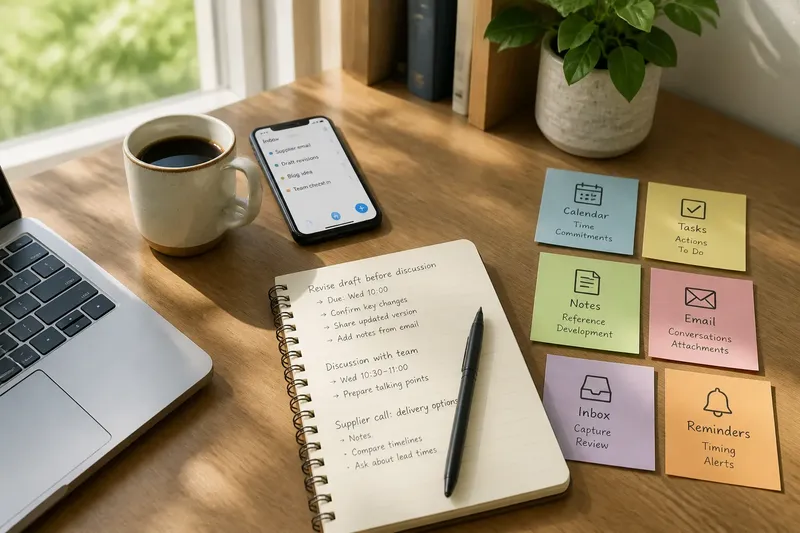
A note, task, appointment and message may all concern the same project, but they serve different purposes. A note holds material to consult or develop. A task describes an action to complete. A calendar entry marks a commitment tied to a date or time. An email preserves the original conversation and its attachments.
Combining those items in one app can work if the app distinguishes them clearly. If a task sits among reference notes without a reliable way to resurface, it may be easy to overlook. If a calendar entry becomes a substitute for a growing project record, its useful context may be hard to retrieve later.
Instead of sorting information by broad topics such as “Work” or “Personal”, ask what you will need to do with it. That question can make the next destination clearer without requiring a maze of folders or labels.
Assign each app a clear responsibility
A simple division gives every kind of information a natural home:
- Calendar: Check whether the item is tied to a real date or time. If it is, add the commitment to your calendar; if it is only work to complete, put it on your task list instead.
- Task manager: Check whether the item describes an action you intend to take. If it does, write the action as a task; if it is background information, keep it in a note or its original source.
- Notes app: Check whether you will need to consult, develop or preserve the information. If so, save it with a recognisable title; if it only prompts an action, create a task and link to the note if needed.
- Email: Check whether a message or attachment is the original record. If it is, leave it in the relevant thread and point to it from a task when useful; if no follow-up is needed, archive or file it according to your usual practice.
- Capture inbox: Check whether you cannot classify the item at the moment it arrives. If so, put it in one temporary inbox and review it later; if its purpose is already clear, send it directly to the right app.
- Reminder or alert: Check whether timing changes what you should do. If it does, set a relevant prompt; if not, rely on the task review or search rather than adding an unnecessary alert.
These are responsibilities, not sealed compartments. A task can link to a note, and an email can lead to a calendar commitment. The aim is to avoid making several apps compete to be the complete record of the same item.
Capture quickly and classify the item afterwards
When something arrives during a call or while you are away from your desk, speed can matter more than perfect filing. A temporary inbox is useful if you return to it and decide what each item is. Without that review, the inbox becomes a second archive—one whose contents are difficult to predict.
For a loose item, decide whether it is an action, a dated commitment, reference material or something to discard. Keep the original message or document where it arrived, then add only the action or pointer needed elsewhere. This avoids turning one request into several near-identical entries.
Say you receive an email asking you to revise a draft before a scheduled discussion. You create a task called “Revise the draft before the discussion”, add the relevant due context, leave the request in its email thread and put the discussion in your calendar. The resulting arrangement lets you see the action in the task list, retrieve the original instructions in email and find the appointment in the calendar without copying the whole message into every app.
Make saved information easy to recognise
Finding a saved item depends partly on where you expect it to be and partly on how it is named. A note titled “Supplier call: delivery options” is more recognisable than “Tuesday notes” if you are searching for a delivery decision later. Include a project or subject in a title when that detail will distinguish it from similar material.
Tags can help when you repeatedly need to gather related items across separate notes. They add little if you use them inconsistently or cannot remember which label you chose. Before adding a new tag or folder, consider whether a clear title and the app’s search are enough.
Keep tasks focused on actions. If a task depends on a document, link to it or add a brief pointer instead of copying the full contents into the task manager. If a direct link is unavailable, include enough context to recognise the source and return to it.
Give important work a way to resurface
Storing information does not automatically bring it back to attention. A calendar can surface a commitment at the right time. A task list can bring forward work during a regular review. A note may remain out of sight until you search for it, unless you connect it to a task or meeting you already revisit.
If a note contains an unresolved question, keep the reasoning there and create a separate task for the follow-up. If the question belongs in a meeting, add a pointer to the meeting preparation. The explanation and the prompt can live in different apps while remaining connected.
Reserve alerts for work whose timing affects the next action. If every saved item triggers a notification, important prompts can become harder to distinguish. Before adding one, check whether a calendar entry or regular task review already gives the work a suitable route back into view.
When does one app still make sense?
Can one app manage tasks, notes and calendar events?
Yes, if it presents each kind of item clearly and gives you a dependable way to find it again. If tasks disappear among notes or appointments lack useful context, separate apps may make the responsibilities easier to see.
Should I move all my existing information at once?
Start by moving active work only if you need a new arrangement; an old archive can stay where it is until you need an item. When you do move something, retain a recognisable title or pointer to its original context.
What belongs in a temporary capture inbox?
Use it for an item you cannot classify at the moment, such as a thought recorded between meetings. If you can already tell that it is a task, appointment or reference note, put it directly in the appropriate app instead.
How can I tell whether my app boundaries work?
Notice where you look for each kind of information and whether you can retrieve it without searching several copies. If the same item keeps appearing in multiple places, decide which app holds the source and which holds only an action or pointer.
Choose an arrangement you can keep up
A workable setup does not need a perfect set of apps. It needs a manageable way to capture an item, decide what it is, store it and bring it back when necessary. If a particular tool makes one of those jobs confusing, change its responsibility or remove it from the workflow rather than adding more labels to compensate.
Consider a small invented situation. You use Google Calendar for appointments, Todoist for actions, Apple Notes for reference and Gmail for messages. A client emails a request to prepare two questions before a meeting already in your calendar. You leave the request in Gmail, create a Todoist task with the action and meeting context, and add the questions to an Apple Notes page titled with the client and project. The resulting trade-off is clear: you visit separate apps, but each contains the kind of information you expect to find there, and the task points you towards the supporting note and original message.
The app-for-everything snare is less about the number of tools than the confusion between their jobs. Give each item one clear home, preserve links to useful context, and choose a reminder only when timing matters. A simple boundary is worth keeping if it helps you find the next action without making you maintain duplicate records.