One Monitor or Two? Arrange the Screen Around the Task
One monitor or two depends on how your work uses context: compare window layouts and handoffs to choose a screen arrangement that reduces friction.
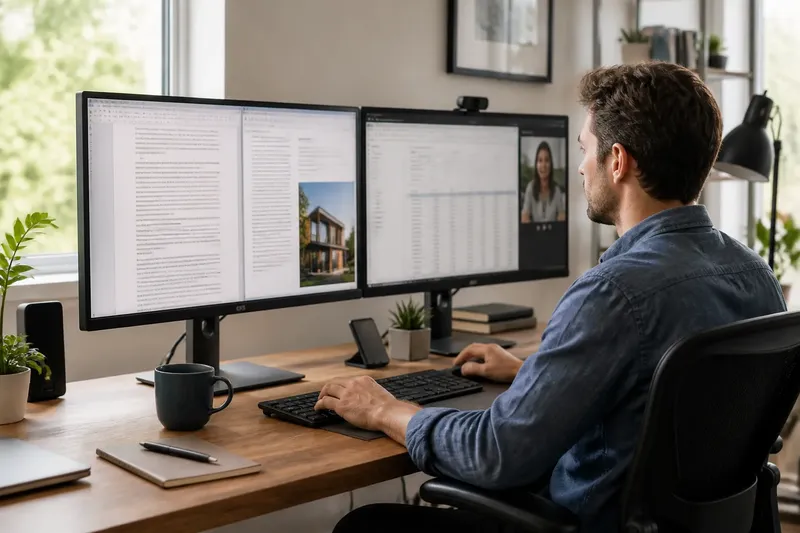
You are editing a report while keeping a reference document open: each time you switch windows, you lose your place in one of them. The question of one monitor or two is less about how much glass sits on the desk than about how often the task asks you to compare, carry, or briefly consult separate pieces of information.
A single large display can hold several windows together, while two screens give them distinct physical positions. Neither arrangement removes the need to change attention. The useful choice is the one that gives the task’s most important relationship a clear, steady place.
One monitor or two starts with the shape of the work
Look at the task as a sequence of attention, not as a list of apps. A document and its reference may need to be visible at once. A video call may need occasional attention while the main work remains elsewhere. Or one activity may occupy the screen for long stretches with little need to consult another window.
These patterns point to three workable arrangements:
- One large display: keep related windows side by side or switch between them on one continuous surface.
- Two separate displays: assign each screen a stable role, such as primary work and supporting material.
- One display with deliberate switching: make one window prominent at a time and use app switching or virtual desktops for brief detours.
The third option is not a lesser version of the first two. It suits work in which comparison is occasional, while keeping a single visual field uncluttered is valuable. The central question is whether the task depends on seeing two things together or simply returning to one after another.
A large single display suits work that changes shape
One broad screen can accommodate a main window and a supporting window without putting a physical border between them. In Windows, Snap Layouts can arrange windows in preset positions; on macOS, window tiling options can keep a document beside a browser. The precise controls differ, but the aim is the same: make a useful arrangement easy to restore.
This setup is often comfortable for work that alternates between a few arrangements. A writer might place a draft beside a source document, then give the draft the full display for close editing. Someone reviewing a spreadsheet might widen it temporarily to inspect columns, then return to a side-by-side view with notes.
A large display also allows the supporting window to be resized rather than treated as a fixed second zone. That flexibility helps when one task needs a narrow reference pane and another needs a broader comparison. Its drawback is that multiple open windows can compete for attention, especially if the layout changes continually and no arrangement becomes familiar.
Choose this approach if your windows often need to share space, but their relative sizes or positions vary. It is less suited to a task where one source must remain visible in the same place for long periods while you work elsewhere.
Two screens suit stable pairs of information
Separate displays are useful when two kinds of information have distinct, recurring roles. A designer may keep a working canvas on one screen and a reference image or tool panel on the other. A person on a call may keep the conversation on a side display while working on a document on the main one. The advantage is spatial memory: the supporting item stays where expected, so reopening or uncovering it is less frequent.
That stability can be less useful if the pair changes constantly. A screen reserved for messages may tempt repeated glances even when the current task does not need them. And if the secondary display is mostly empty, the extra space may add visual spread without making the work clearer.
Consider where the important relationship falls in your normal posture. A source that needs close, frequent comparison may belong beside the main work. A tool checked only now and then can sit farther away or be hidden until called for. Keep the primary task in the position that feels natural to read, rather than letting a secondary window become the visual centre simply because it is always open.
Switching can be the cleaner arrangement
When a supporting window is consulted briefly, switching may cost less attention than keeping it visible all day. App switching, browser tabs, and virtual desktops can separate different modes of work without adding another always-present surface. On Windows, Task View offers a way to move between virtual desktops; macOS users can use Mission Control and Spaces for a similar kind of separation.
This approach works best when the return path is simple. Keep related windows grouped, use recognisable names for documents, and avoid scattering the same task across several desktops. The goal is not to create a complex filing system; it is to make the next relevant window easy to recover.
Say you are preparing a presentation and consult a brand guide only when choosing colours. Keeping the guide open beside the slides may narrow the canvas and invite unnecessary glances. If you leave the presentation prominent and switch to the guide at the moment of a colour decision, the expected observable result is more room for the slide and a clear return to the editing task. If you find yourself repeatedly comparing the guide with the slide, the task has changed: a side-by-side arrangement may now be more useful.
Which screen arrangement fits your task?
Is one large monitor enough for side-by-side work?
It can be, if both windows remain legible and the arrangement leaves enough room for the main task. Try the actual documents and apps you use, rather than judging the layout with empty windows.
Are two monitors better for constant comparison?
They can keep a source and a working view in stable positions, which is useful when your eyes move between them often. If comparison is occasional, a tiled layout on one display may be simpler.
Should messages stay open on a second screen?
Only if responding while doing the main task is part of the work. Otherwise, a visible message window can create repeated interruptions; consider checking it at chosen moments or keeping it out of view.
How can I choose without buying new equipment?
Use your current display for a typical work session and note which windows you return to, how often you compare them, and whether resizing or switching breaks your train of thought. Test a tiled layout, a stable second-screen role if available, and a single-window workflow before deciding what the task actually needs.
Choose by the relationship you need to preserve
A practical way to decide is to notice what disappears when you move away from a window. If you lose a useful comparison, keep the two items visible together. If you lose your place because a supporting app stays in view, make switching deliberate. If the same pair recurs in the same roles, separate screens can give that pattern a dependable shape.
For a few ordinary work sessions, observe the moments when you resize, uncover, or reopen a window. These actions reveal more than the number of apps in use: they show whether your task needs shared space, stable positions, or clean turns of attention. One monitor or two is therefore a decision about the work’s recurring relationships, not a verdict on which setup is universally better.
Once the arrangement fits, save or repeat the layout that serves the task and let other windows stay out of its way. A useful screen is not the one that displays everything; it is the one that makes the next necessary relationship easy to see.