Desktop Folders as a Filing Habit, Not a Storage Guarantee
Desktop folders make files easier to recognise and retrieve. Build a clear desktop-folder filing habit while learning what folders do—and what they do not.
You save a receipt scan, then pause over the desktop because you cannot decide where it belongs. A desktop-folder filing habit can make that choice easier, provided the folder icon is treated as a way to organise files rather than a complete picture of where their contents live.
Use folder names to answer a retrieval question
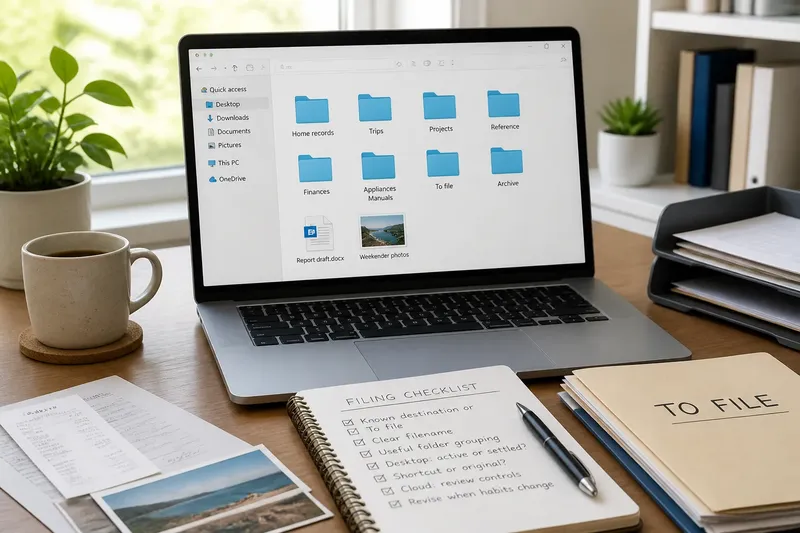
A folder gives a file a named place you can return to. “Home records” tells you more about a collection than “PDFs”: a PDF might be a bill, a manual or a signed form, while the subject suggests why you kept it.
Choose broad folders around the questions you expect to ask when looking for something. Separate current project material from reference documents if you handle them differently. Add subfolders only when a distinction helps you find items; otherwise, keeping related files together avoids extra layers.
Imagine you have downloaded a signed lease and photographs from a weekend away. You move the lease to “Home records” and the photographs to “Trips”, then leave only the document you are actively editing on the desktop. The expected result is a desktop that points to current work, while the saved files remain retrievable by their subject and location.
Keep the desktop’s role clear
The desktop is easy to see, which makes it useful as a temporary landing place and an awkward permanent archive. Decide whether you want it to show a few active files or remain clear. Either choice is easier to maintain than allowing it to collect unrelated downloads indefinitely.
If you cannot file an item immediately, use a holding folder with a plain name such as “To file”. When you return to it, decide whether each item belongs in an existing folder, needs a clearer name or can be removed. Keep the holding area distinct from your settled archive so that temporary uncertainty does not become permanent clutter.
Build folder paths that match how you search
A folder path is the sequence of folders you open to reach an item. For example, “Home records” followed by “Appliances” and “Manuals” gives you a route to cooker instructions. It is useful when each level narrows the search in a way you understand.
Names should help after the context has faded. “Kettle warranty” is easier to recognise than “Warranty”; adding a date or version can help if you keep several related documents. Use a consistent naming pattern where it solves a recurring search problem, rather than making every filename elaborate.
Understand what a folder on screen represents
On a Mac, Finder displays files and folders; on a Windows PC, File Explorer does the same. In both, a folder is a named location in the file system, and a file is an item you can open with an app. The window shows you how items are arranged, but it does not always show every detail about storage, sharing or synchronisation.
A shortcut in Windows or an alias on macOS points to another item; it is not the original file. Deleting the shortcut or alias usually removes that route, whereas deleting the original affects the file itself. Check the prompt and the app’s explanation before confirming if you are unsure which item you selected.
Cloud services add another distinction. For example, a folder in OneDrive or iCloud Drive may show files managed by that service, including items that synchronise across devices. A folder displayed in an app may also be a view organised by labels or projects, rather than a separate physical copy of every item it lists. If deletion, sharing or offline access matters, check the service’s controls and instructions before acting.
Which folder choices make retrieval easier?
Should every file have its own folder?
No. A folder is useful when it groups material you expect to handle together, such as a project’s plans and correspondence. If it contains one isolated file and creates no useful distinction, the extra step may not help.
Is the desktop a good place for active files?
It can be, if seeing a small selection helps you return to current work. If unrelated items make the desktop hard to scan, move settled files into named folders and keep only items that benefit from being visible.
Should files be organised by type or subject?
Choose the grouping that matches the search you are most likely to make. A receipt and a letter about the same household matter may be easier to find together by subject, even though they use different file formats.
Does moving a file into a folder always move its contents?
Not necessarily. You may be moving a shortcut, changing a cloud-managed item or reorganising a view inside an app; check the software’s description if the effect on access or deletion matters.
Choose a filing habit that survives interruptions
A simple filing routine needs to work when you are in the middle of something else. For each new download, either choose a known destination or put it in “To file”. Later, use Finder on macOS or File Explorer on Windows to locate and sort the item; search can help when you remember a subject or sender but not the folder path.
- Check whether a filename describes the item. If it says only “Scan” or “Document”, rename it with its subject; if the subject is unclear, open it only when appropriate and safe, then choose a descriptive name.
- Check whether a folder groups files you expect to find together. If it does, keep the grouping; if not, move the files to a more useful existing folder or create a folder for a real recurring distinction.
- Check whether the desktop contains active work or settled material. If an item is active and visibility helps, leave it there; if it is settled, move it to its named home, or clear it if you want an empty desktop.
- Check whether an item in “To file” has a clear purpose. If it does, move it to the matching folder; if it does not, inspect it safely or leave it there until you can identify it rather than guessing.
- Check whether an icon is a shortcut, alias or original file. If it is a link, follow it to confirm the target before deleting; if it is the original, confirm that removal is appropriate before acting.
- Check whether a cloud folder is shared or synchronised. If it is, review the service’s deletion and sharing controls before moving or removing material; if those details are unclear, consult the service instructions first.
A folder structure should change when your way of looking for files changes. Keep the names and paths that still make sense, and revise the ones that have become a puzzle. The desktop-folder filing habit is doing enough when you can explain why an item is where it is—and know when the icon alone cannot tell you what will happen if you move or delete it.